| Principles of FTP |
  
|
| Principles of FTP |
|
Introduction
The FTP protocol dates back to the early 1970s, and was designed for a relatively simple network, with few computers on it, mostly directly connected, rather than servers within complex private networks (behind routers and firewalls) being accessed from the internet.
It has to a large extent been superseded by Hypertext Transfer Protocol (HTTP) which has expanded its abilities way beyond those originally planned in the late 1980s, including the transport of large binary files.
FTP excels where there are complex hierarchies of directories and files, which a suitable graphical client can show the local and distant machines alongside each other, allowing easy comparison of the two machines. Curiously its most useful application is in conjunction with web servers - it can be configured to quickly and transparently compare file structures on client and server, updating the one or the other with newer or non-existent files.
Which FTP Client ?
There is a bewildering array of clients available: Absolute FTP, Cute FTP, FileZilla, NcFTP, Smart FTP, WS_FTP to name but a few. A search on Google for ftp client produced 24 million hits !
Most of these use a graphical interface, but if you are a diehard command-line user, the FTP client built into even the latest Windows operating system will perform the task perfectly well.
You can even use a browser using an address like:
ftp://myftpserver.mydomain.com
In fact, files are often downloaded using FTP by browsers without the user ever knowing - the link for the final download may actually access a FTP server.
How does FTP work ?
The client will initiate a connection with the server, usually via port 21 - this connection does not pass any data, only control messages, hence it is called the Control Channel. This allows the connection to be established, and the login to take place (either anonymous or using a special username and password).
The transport of data (in either direction, and this includes file/directory listings) requires the setting up of a separate data channel (initiated by the FTP client), which may be of two possible types, as shown in the diagram below.
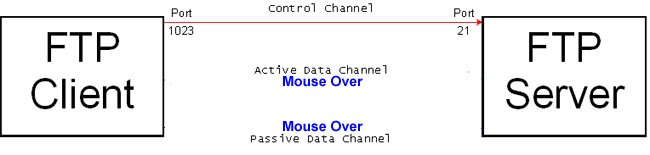
As the image above shows, there are two methods of establishing the data connection, Active or Passive modes, and these are both usually supported by FTP clients. Mouse over the diagram above, to show how these work. Active mode is the default: the reason for the different methods will be explained under Problems with Routers & Firewalls below.
Active Data Connection
Via the control channel, the client sends a port number to the server (using the PORT command), then waits for the server to connect to it on this port, from port 20 on the server (the use of port 20 by the server is a convention, like the use of port 21 for the Control Channel).
The data (in either direction) is transported, and the data channel closed.
If more data is to be transported, the client will send another port number to the server, the server will connect through its port 20 with the specified port on the client, and that data transported. A different port is used because there is a delay between the instruction to close the original port and its actually closing, which mean it cannot be re-used immediately.
The client will choose port numbers using its own scheme, the details of which are unimportant here as long as ports are not re-used until they will definitely be free.
Passive Data Connection
Via the control channel, the client will issue an instruction to the server (using the PASV command) that the server should open a port to which the client can open a connection. The server will respond with a port number and await the client's initiating a connection to that port. Once established, this will be used for the transport of data, then closed again, just as with the Active method above.
Problems arise if the server and/or the client lie behind firewalls and are on networks using private IP Addresses from the following ranges:
•10.0.0.0 - 10.255.255.255
•172.16.0.0 - 172.31.255.255
•192.168.0.0 - 192.168.255.255
These addresses are not routable from the internet (only within their own local network), so their internet connection is via some sort of routing device, typically an ethernet router combined with a DSL or Cable modem. This will provide Network Address Translation (NAT) and possible a firewall too.
It is essential that packets to FileCOPA FTP Server are routed to the right machine, and packets from FileCOPA FTP Server are correctly routed and translated where necessary.
Even where the server has a 'real' IP Address, it may be behind a firewall which must be configured correctly.
Routers
Server-side Problems
Incoming packets to the appropriate port must be forwarded to the correct machine by the router - it is usually possible to configure routers to do this, using Network Address Translation (NAT).
Once this is done, establishing the Control Channel usually presents no problems, and because the Active data channel is created by the server as an outgoing connection, packets coming back from the client should be correctly passed to the server by the router.
However, if the client has opted to use passive mode, the server will open a port, tell the client and await a connection from it. There is a problem:
•The server will send its local (private) IP Address, which will not be routable from the client.
•Even if the above were remedied, the router will not know to forward packets from the client to the passive FTP port on the the server.
These may be solvable by the router itself: most modern routers will intelligently handle packets which use the FTP protocol (by monitoring the Control Channel), so they will recognise the outgoing 227 Entering Passive Mode command from the server, translate the internal IP Address to the external IP Address, then route incoming packets on this port to the server's private IP Address.
Here is the translation in diagramatic form:
Server Sends |
Client Receives |
227 Entering Passive Mode(192,168,1,2,4,302) |
227 Entering Passive Mode(80,235,193,22,4,302) |
NOTE that the port number is formed from the last two numbers of the sequence: (1st x 256) + 2nd The port number here is 1326 (4x256+302).
However, it may be necessary to use the standard FTP port (21) for this to work. Your router might allow the use of other ports, but will probably need special configuration for this.
The port set for passive FTP should not matter. FileCOPA FTP Server will choose one semi-randomly, but you can if you wish set the range from which this will be chosen, see the Ports page.
Client-side Problems
Establishing the Control Channel should not present problems as it is an outgoing connection from the client, and Passive FTP should also work properly as it too involves an outgoing connection from the client.
However, Active FTP will however present similar problems as on the server side:
•The client will send its local (private) IP Address, which will not be routable from the server.
•The router will know nothing of this and will not forward packets from the server to the client machine.
As with Server-side Problems, both of these may be solvable by the router itself: most modern routers will intelligently handle packets which use the FTP protocol (by monitoring the Control Channel), so they will recognise the outgoing PORT command from the client, translate the internal IP Address to the external IP Address, then route incoming packets on this port to the client.
Here is the translation in diagrammatic form:
Client Sends |
Server Receives |
PORT 192,168,1,2,230,600 |
PORT 80,235,193,22,230,600 |
NOTE that the port number is formed from the last two numbers of the sequence: (1stx256)+2nd The port number here is 59480 (230x256+600).
However, it may be necessary to use the standard FTP port (21) for this to work. Your router might allow the use of other ports, but will probably need special configuration for this.
Firewalls
We cannot advise on the details of configuring individual firewall products, though for the built-in Windows XP firewall, FileCOPA FTP Server will set up an exception for itself on installation.
In general, the following principles should be followed:
Server-side problems
For active FTP, the firewall must allow incoming connections to port 21, and outgoing connections from port 20.
Passive FTP is more problematic as incoming connections must be allowed on ports created 'on the fly' by the server. The simplest way of handling this is to configure FileCOPA FTP Server to use a restricted range of ports, and configure the firewall to allow incoming connections on these ports.
Using non-standard FTP Ports
FileCOPA FTP Server allows you to use standard port numbers, even if you are behind a router. Reasons for this may be:
•You wish to make the presence of your FTP server less obvious to hackers.
•You wish to run more than one FTP server on the same machine, or on different machines on your network, all accessible from outside.
As explained above, most routers will automatically handle connections via the standard FTP port (21), appropriately translating ports and IP Addresses. But they may not handle the use of non-standard ports at all.